As we wrap up October, we're excited to share our biggest round of updates yet — headlined by Announcements, a brand-new way to share closures, holidays, and reminders right in the parent app. We've also brought the AI Assistant to more places, added more flexible billing tools, and a fully upgraded Store. Here's everything that's new ?
Just Launched: Announcements
Our biggest addition this month! You can now post short messages to families and classrooms for a set period, perfect for a closure, a holiday, picture day, or a quick reminder.
Easy to set up: Go to Childcare Settings → Broadcast → Announcements and click Create Announcement. Add your message, pick the start and end dates, and choose specific classrooms or all classrooms.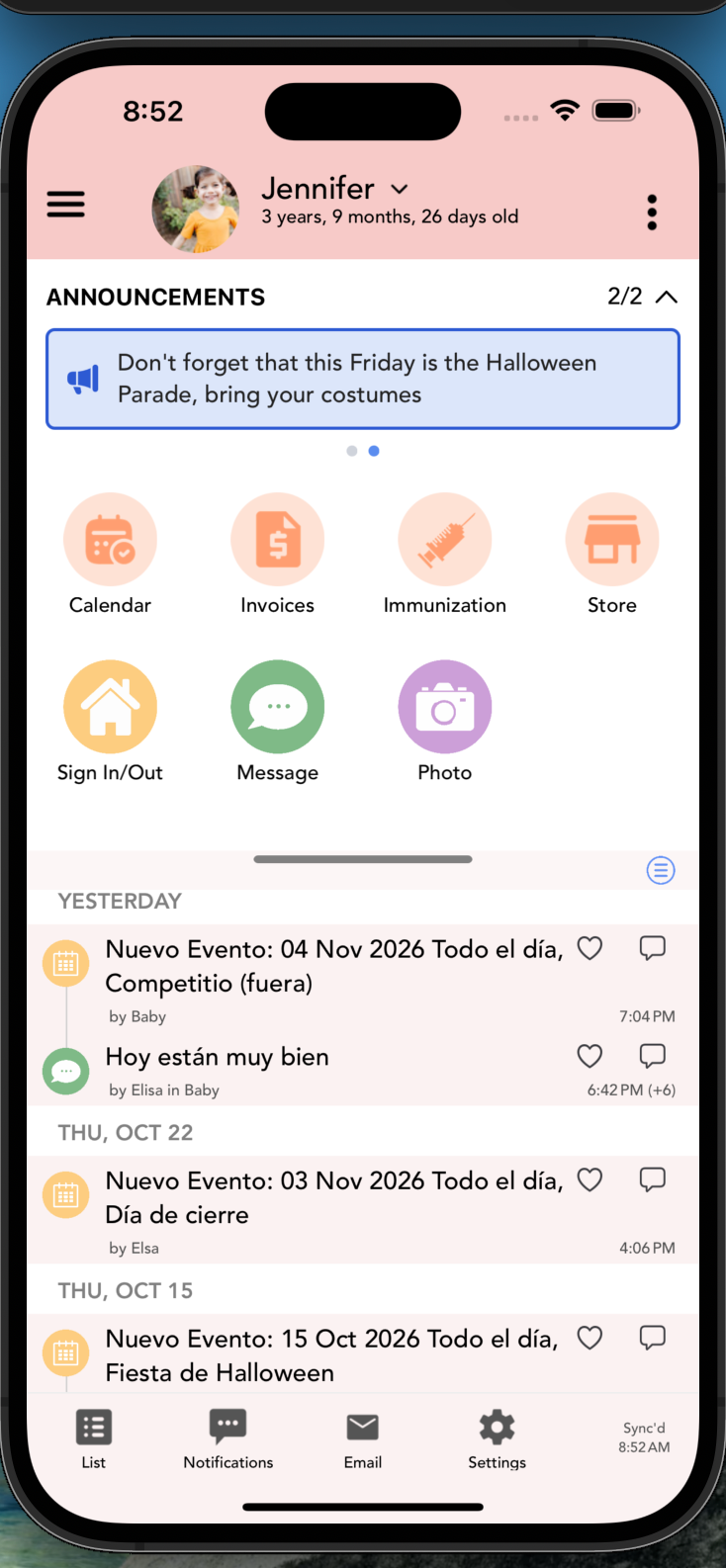
✨ AI Assistant, Now in More Places
The AI Assistant is now available in more parts of Daily Connect, so you can draft clear, friendly messages and summaries in seconds. You review and send.
Communications: The AI Assistant is now available in Emails, Send Text/Emails, and Send Messages/Documents.
Observation Report Summaries: Generate a summary based on a child's assessments for the selected period, right from the Observation Report.
Parent Billing
More Control Over Payments
Write-Offs: When you know part or all of an invoice won't be paid — say a family moved away, or you agreed to forgive a balance — you can now write off that amount. (Learn more)
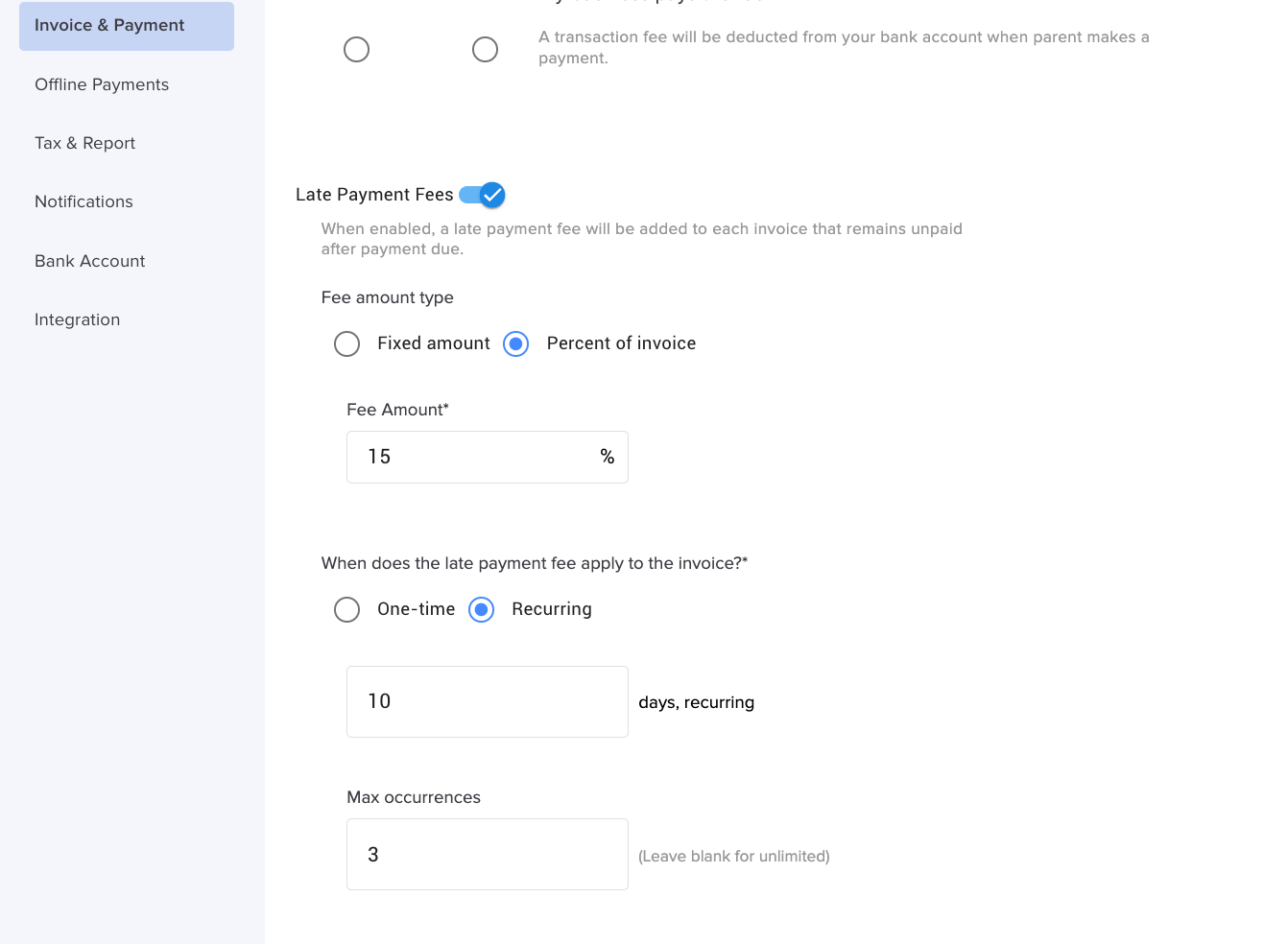
Flexible Late Fees: Late fees can now be a percentage of the invoice, and can recur (for example, every day for up to 7 days) — in addition to the existing Fixed Price and One-Time options.
Require Autopay: Under Settings → Invoices & Payments, you can require parents to enroll in Autopay. When enabled, parents can't uncheck Autopay when entering payment information or remove their last payment method.
Disallow Partial Payments: A new option under Settings → Invoices & Payments lets you turn off partial payments.
Let Parents Pay Invoices Individually: A new toggle under Settings → Invoice and Payment has parents pay invoice by invoice, instead of paying their overall balance.
Mark as Unpaid When Refunding: When refunding a payment, you can now mark the invoice as Unpaid instead of Voided.
Billing Notifications
Payout Notifications: You'll get a message when a payout is generated; the money should arrive in your bank 1–2 days later. You can unsubscribe under Notifications → Settings.
Autopay Disabled by Parent: A new email/web notification lets you know when a parent turns off Autopay (Parent Billing → Settings → Notifications).
Autopay Payment Error: Parents now receive an email when Autopay is turned off due to an error with their payment method.
Reporting and Visibility
Filter Transactions: Filter Parent Billing transactions by type and status.
Fee Details in CSV Export: For centers that cover the transaction fee, the CSV export now shows the Gross Amount, Net Amount, and Fee Amount.
Payout After Fees: When you pay the fee, you now see the payout after fees under the totals.
New Write-Off Report: See all written-off invoices across locations in one report.
Payout Report Update: The report now uses the payout date. The transfer date is still shown.
Enhanced Enrollment and Store Features
Store Products
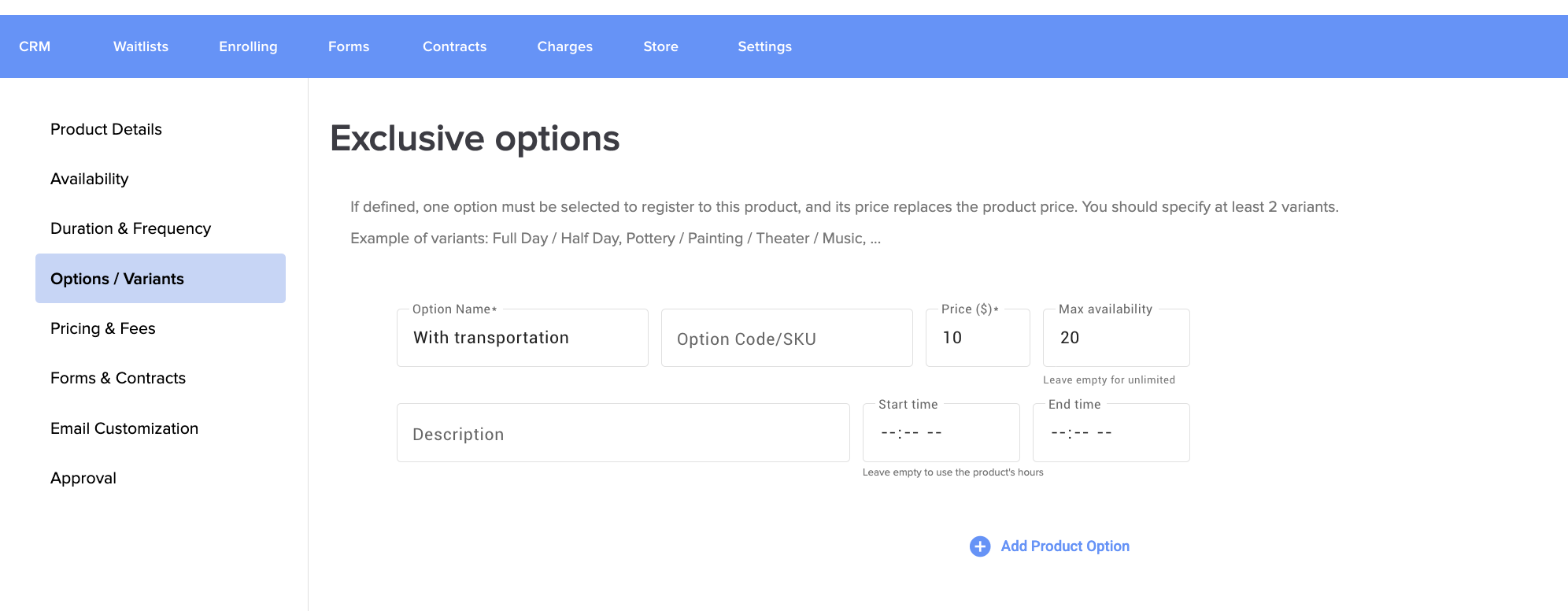
Exclusive Options and Add-Ons: Store Products now support two kinds of choices. With Options, parents pick one, and the option price replaces the product price. With Add-Ons, parents can select several, and each price is added on top of the product or option price.
Per-Option Availability Limits: Set a spot limit for each option. It's enforced in addition to the overall availability limit for the product.
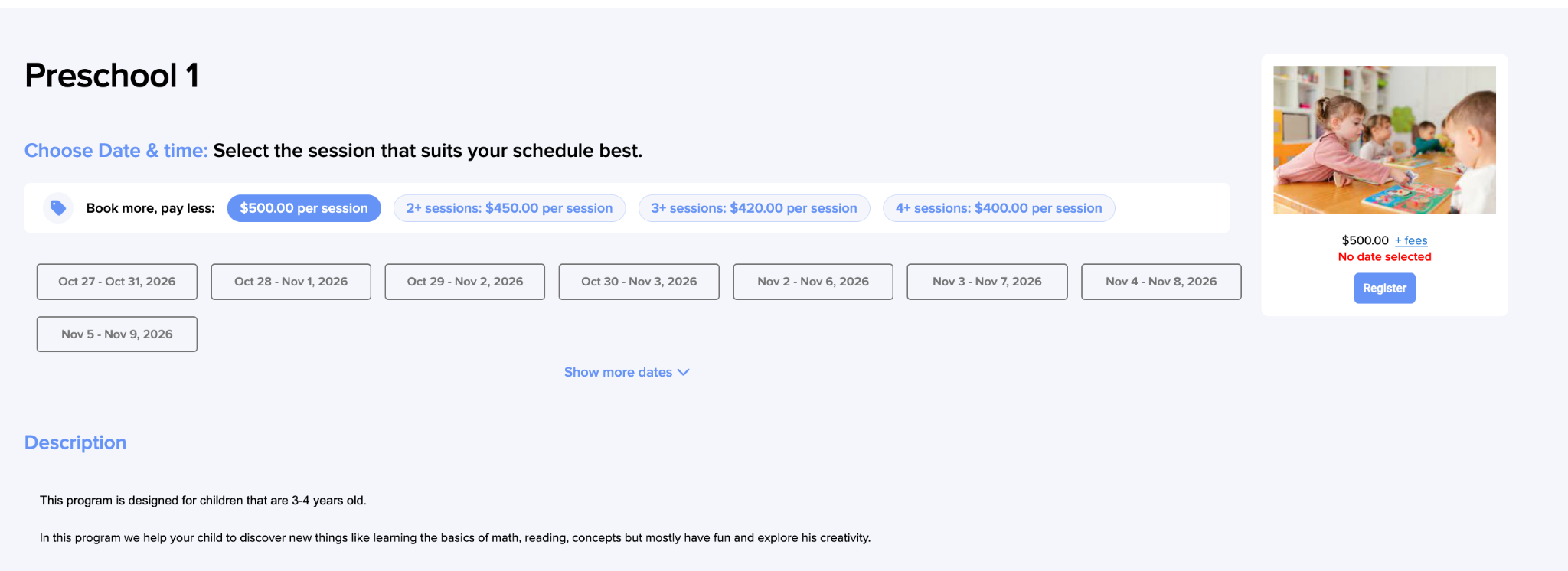
Volume Discounts: Offer a lower rate per session when a parent books several sessions in one order. For example, a $100 drop-in day can be $90 per session for 3 sessions, or $80 per session for 5. (Learn more)
Show Fees on the Product Page: A new option on the Pricing & Fees page lets parents see fees before they register.
Paid Registration Fees on Parent and Child Pages: Registration fees paid through the Store now appear on the parent's and child's pages, so you can see at a glance which fees each family has paid.
Session Times: Specify a session time for a Store Product, or for its Options/Variants. Once children are admitted, it's reflected on their schedule.
Folders and Templates: Organize products in folders, and save any product as a template (managed under Settings → Product Templates). Templates can include customized sections and fields.
Export a Product as PDF: Download any Store Product as a PDF.
Staff Forms for Store Products: You can now attach Staff Forms to Store Products. This lets new hires enter their own information and sign employment documents directly, so you don’t have to re-enter it yourself.
QR Codes: Share a QR code that links straight to your Store — families can scan it from any phone, no app needed. You can also create a QR code for a single product, including products that aren't listed publicly.
Applications and Forms
Rename Any Section: Every section of an enrollment form can be renamed, including system sections like Parent/Caregivers.
Customize Columns: A new Customize Columns button at the top right of the applications list lets you choose which columns to display, including custom fields from your forms such as age or allergies. See the information that matters for your review at a glance, without opening each application.
New Tools in the Applications List: Search filter, view sent emails, export to PDF, send text, text history, and an Export Forms button that downloads all selected forms in a zip file.
Add to CRM or Waitlist: Add Child to CRM and Add Child to Waitlist are now available for submitted CRM forms.
Parent Calendar
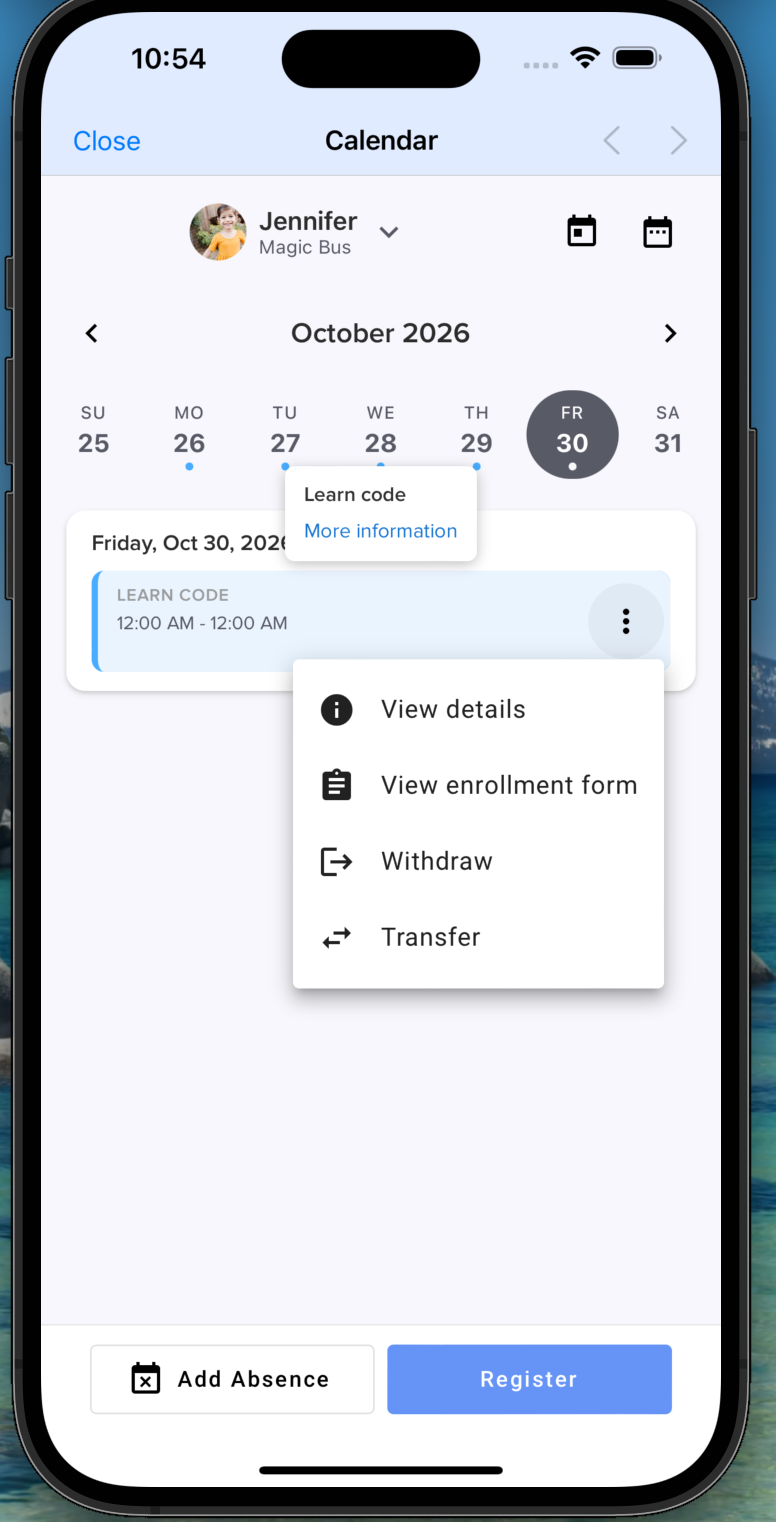
Events linked to a Store Product now show the product's title, short description, and a More Information link. From the event, parents can also view their submitted form, withdraw, or transfer to a different date or option. [Attach the withdraw/transfer PDF]
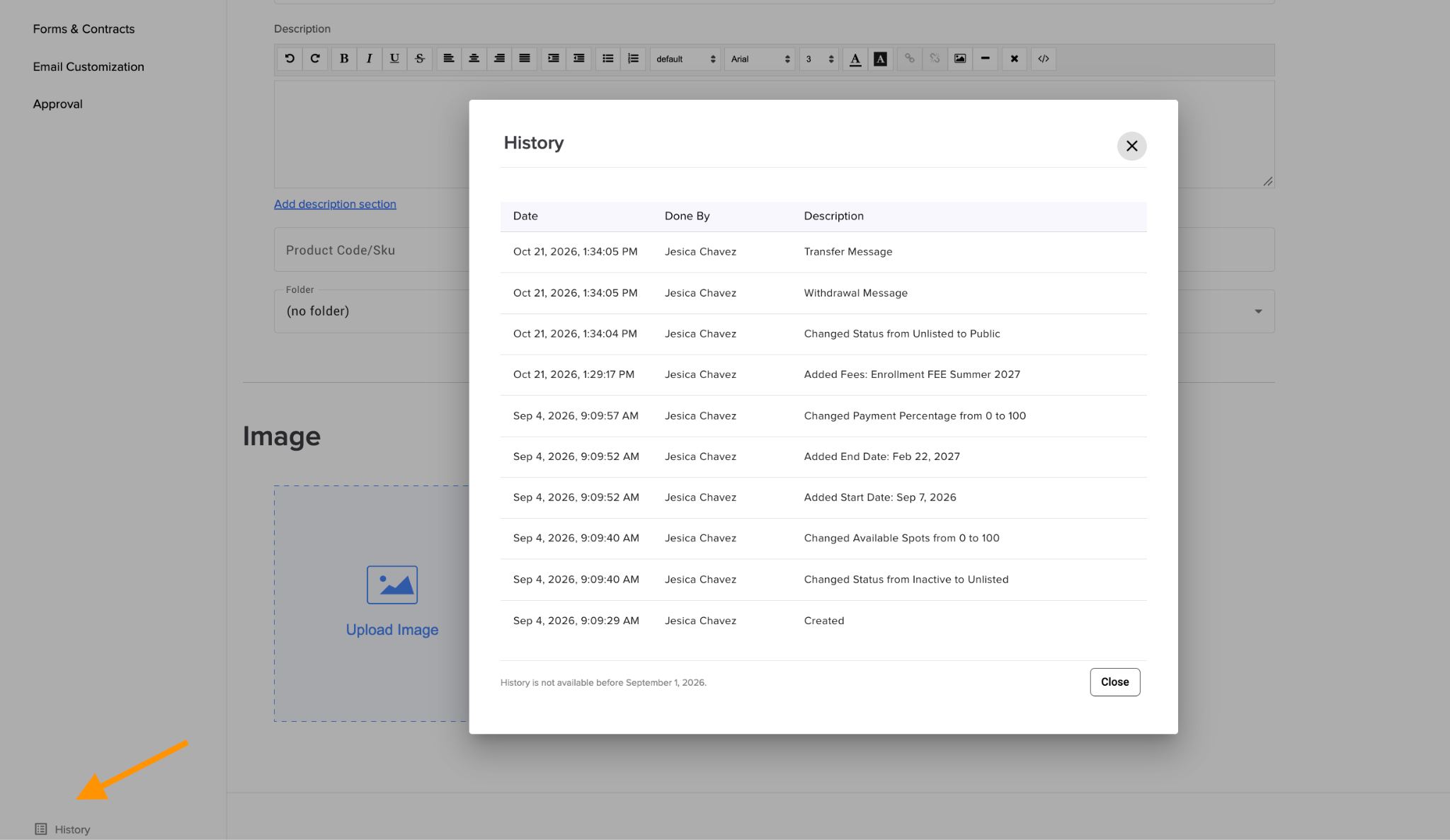
Audit History for Forms and Store Products
See who changed what, and when. The history covers every edit to a Store Product (price, dates, options, fees, forms, payment settings, and more), plus every step of a form submission: sent, opened, submitted, archived, withdrawn, deleted, admitted, linked to a child or staff, added to CRM/waitlist, payments, and notes.
Open it from the History link at the bottom left of the Store Product side menu, or from View History in the submitted forms list.
Staff Management Tools
Staff Break Time: Add break times to a staff member's schedule. Breaks appear on the staff schedule reports.
Timeline or List View: The Staff Schedule can now be displayed as a Timeline or a List.
Multi-Location Time Card Report: Users with access to more than one location can open a new report showing time cards for staff in each location, via the link at the top right of the regular Time Card Report.
New Administrator Privileges: "Can approve teachers' posts" and "Can remove a child profile."
Room Management Reports
Sleep Check Report: See every sleep check logged by staff, grouped by nap, with the time between checks — an easy way to show that each sleeping child was checked on time. Find it under Room Management → Reports.
Sign-In/Sign-Out Log: A new attendance report lists every sign-in and sign-out in one simple list. Open it from the Sign-In/Sign-Out Log link at the top right of Reports → Attendance Report.
⚙️ Settings and Customization
Branding: Customize the Public Name parents see, and the email address that appears on communications sent to them.
Custom Labels for Gender, Rooms, and Parents: Rename these labels to match your program under Settings → Preferences. Note: custom labels apply to Enrollment Forms created after the change.
Hide Categories You Don't Use: Remove categories from the app for staff and parents under Settings → Preferences — for example, hide Diaper and Bottle Feeding if you only care for older children.
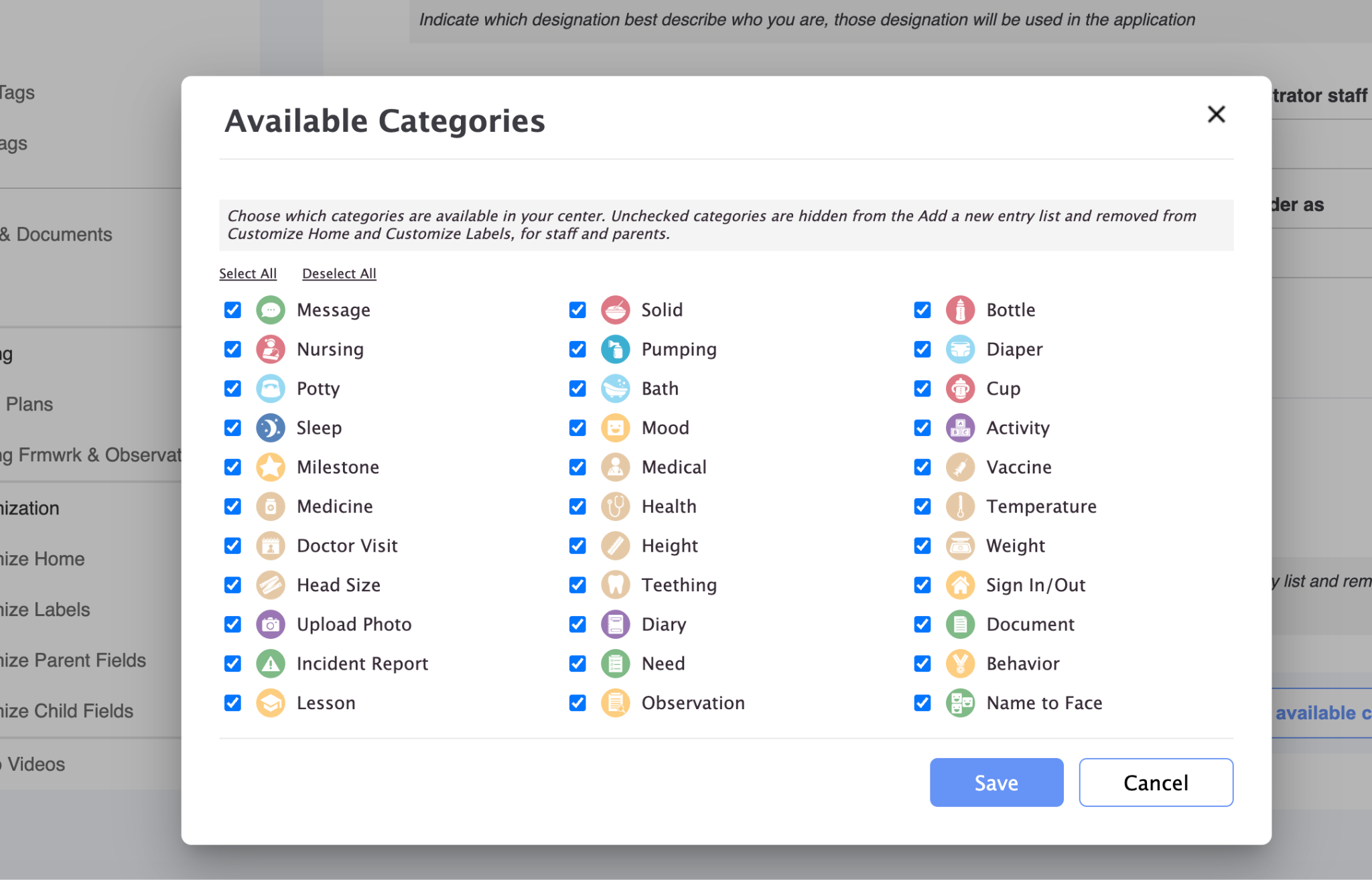
Custom Behavior Categories: Behavior category fields can now be customized, just like Incident Report categories.
Other Enhancements
"Scheduled" View on the Room Management Home Page: The All / In / Out selector now includes a Scheduled option that lists the children expected that day, with their expected hours under each name. It appears when at least one child in the selected room is scheduled.
New "Closure Day" Calendar Event: Closure Days now appear on attendance reports and children's schedules.
More CACFP Menus: You can now add CACFP menus for children ages 13–18 and for adults.
New Learning Framework: The Ontario (ADLH) Learning Framework is now available.
Thank you for being part of the Daily Connect community — we're proud to be part of your journey every day. ?
Need assistance? Our support team is always here to help — simply reach out at support@dailyconnect.com.
We're here for you.
Was this article helpful?
That’s Great!
Thank you for your feedback
Sorry! We couldn't be helpful
Thank you for your feedback
Feedback sent
We appreciate your effort and will try to fix the article